
The Key ID is the identifier of a single App Store Connect API key. It's a 10-character string like 2X9R4HXF34, and you'll find it in the key list under Users and Access → Integrations → App Store Connect API, with a Copy Key ID link next to each key. The same ID is in the file name of the private key you downloaded: AuthKey_2X9R4HXF34.p8.
That second location saves a lot of time. If you have the .p8 file, you already have the Key ID.
Where to copy it
- Sign in to App Store Connect.
- Click Users and Access, then the Integrations tab.
- Choose App Store Connect API in the sidebar and select Team Keys (or open your profile for an individual key).
- Find your key in the Active list and click Copy Key ID.
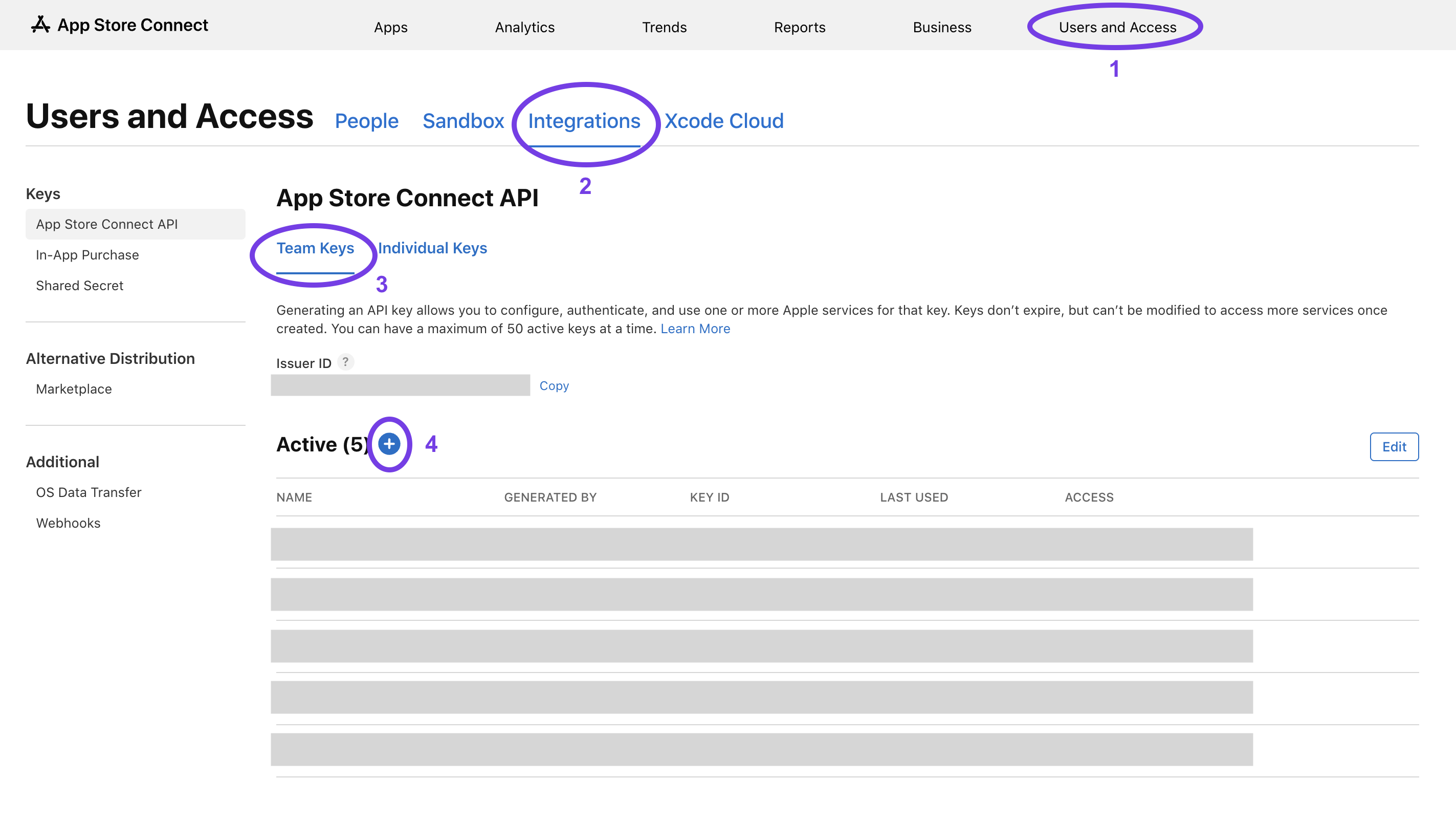
You need the Admin role to see team keys. If the page is empty or missing, ask an Admin on your team.
Three values, one key
An App Store Connect API key is really three pieces that only work together:
| Piece | What it is | Where it goes in the token |
|---|---|---|
| Key ID | Names the key that signed the request | kid in the header |
| Issuer ID | Names your App Store Connect team (team keys only) | iss in the payload |
| .p8 file | The private key that produces the signature | Signs the whole token |
Apple looks up the public half of your key using the Key ID, checks that it belongs to the team in the Issuer ID, and verifies the signature. Swap any one piece for a value from a different key and the request fails with a 401.
Tokens are signed with ES256 and live for at most 20 minutes. That's why tools ask for the .p8 file itself instead of a ready-made token: they need to mint fresh ones as they go.
Finding the Issuer ID is covered in Where to Find Your App Store Connect Issuer ID.
Key ID vs everything else Apple calls an ID
Apple uses a lot of identifiers, and several of them look alike.
- Key ID: 10 characters, one per API key. You'll have as many as you have keys.
- Issuer ID: a UUID with dashes, one per App Store Connect team.
- Team ID: 10 characters, one per Apple Developer membership, used for code signing. It looks like a Key ID but has nothing to do with the API. See How to Find Your Apple Team ID.
- Apple ID of your app: a number like
1234567890, shown under App Information. - Bundle ID: the reverse-domain string you chose, like
com.example.app.
When Apple says the key is invalid
Work through these in order. The first one is usually the answer.
The Key ID and .p8 file don't match. Compare the Key ID you entered with the one in the file name AuthKey_XXXXXXXXXX.p8. If you renamed the file, check the key list for which key you downloaded.
The Issuer ID is from another team. If you belong to several App Store Connect teams, each has its own Issuer ID. Switch accounts in the top right and copy again.
The key was revoked. Revoked keys move out of the Active list and stop working immediately. Generate a new key.
The key's role is too low. A key can authenticate fine and still be refused for specific endpoints. Managing webhooks, for example, needs an Admin key. App Manager isn't enough.
The .p8 is gone. Apple lets you download the private key exactly once. If you've lost it, there is no way to get it back. Revoke the key and create a new one.
Using it with Yeethook
Yeethook asks for the Key ID, the Issuer ID, and the .p8 file, and needs a team key with the Admin role so it can create webhooks on Apple's side and pull details like crash logs and tester comments. The key is checked against Apple's API as soon as you upload it, so a mismatch shows up during setup, not as silence a week later.
Follow How do I create an API key? for the full setup, and API key security for how the key is encrypted and how to revoke it.