
Your Issuer ID is on the App Store Connect API page: open Users and Access, select the Integrations tab, and choose App Store Connect API in the sidebar. With the Team Keys tab selected, the Issuer ID sits at the top of the page above your list of keys, with a Copy button next to it. It looks like a UUID, for example 57246542-96fe-1a63-e053-0824d011072a.
If you don't see it, you are probably not an Admin, or you are looking at individual keys. Both are covered below.
Step by step
- Sign in to App Store Connect.
- Click Users and Access in the top navigation.
- Select the Integrations tab.
- Choose App Store Connect API in the left column, then the Team Keys tab.
- Click Copy next to Issuer ID.
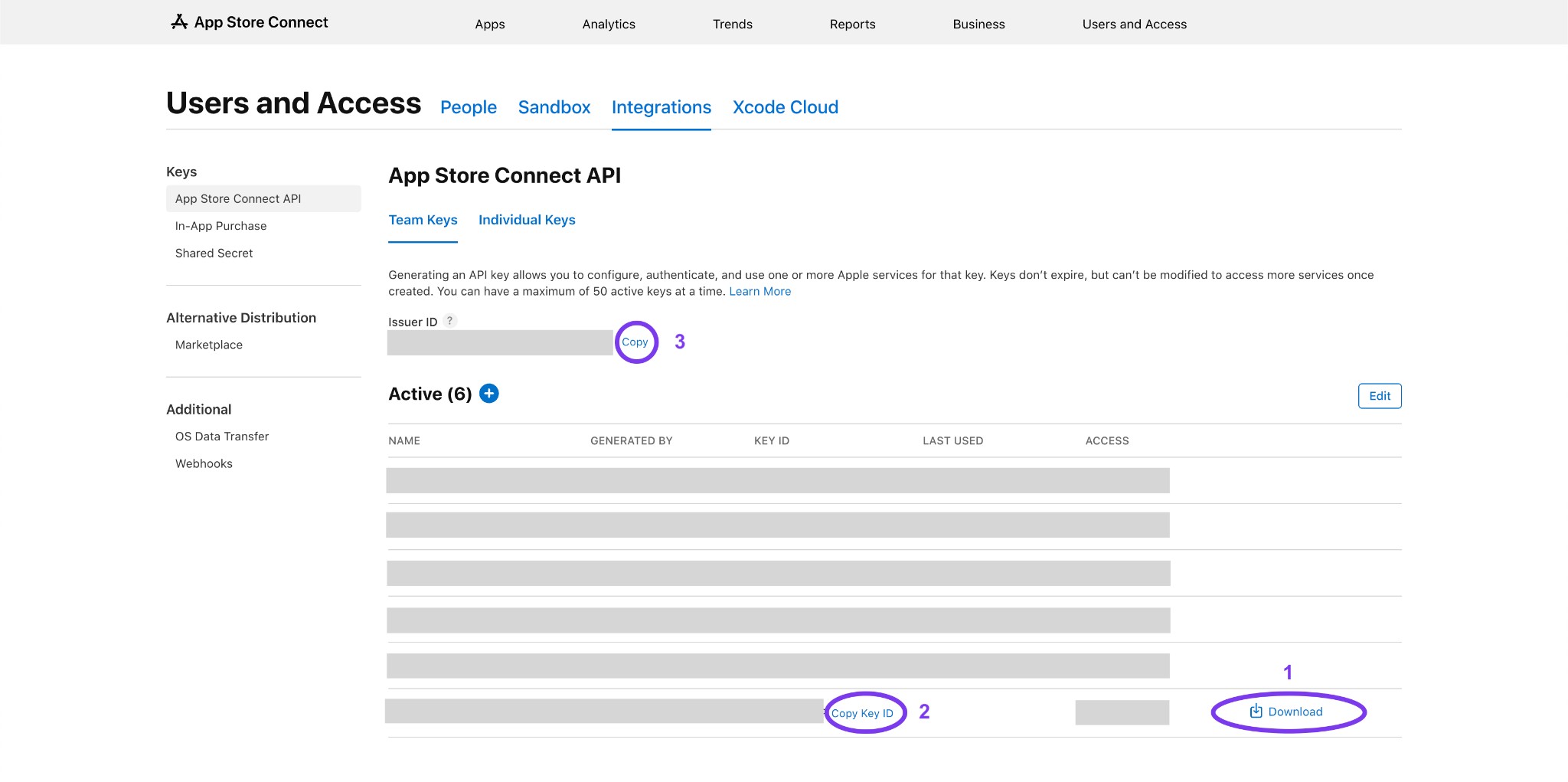
The Issuer ID is the same for every team key in your account, so you only need to look it up once. It identifies your App Store Connect team, not a specific key.
What the Issuer ID actually does
Every call to the App Store Connect API carries a short-lived JSON Web Token. You sign that token with your .p8 private key, and Apple checks three things to know who you are:
- Key ID (
kidin the token header): which key signed the token. A 10-character string like2X9R4HXF34. - Issuer ID (
issin the token payload): which team the key belongs to. - The signature: proof that you hold the matching private key.
Apple needs all three to line up. A Key ID from one account paired with the Issuer ID of another fails, even if both values are real. We wrote more about the Key ID side in What Is an App Store Connect Key ID?.
Why you can't see an Issuer ID
You aren't an Admin. Only users with the Admin role can generate team keys, and the team key page is where the Issuer ID lives. If the Integrations tab is missing or empty, ask an Admin on your team to copy the Issuer ID for you, or to create the key.
You're looking at individual keys. App Store Connect has two kinds of API keys. Team keys are created under Users and Access and belong to the whole team. Individual keys are created from your own user profile and are tied to you. Individual keys have no Issuer ID at all. Tokens signed with them leave out iss and send "sub": "user" instead.
Individual keys also can't use the Provisioning endpoints, Sales and Finance, or notarytool. If a tool asks you for an Issuer ID, it expects a team key.
Mix-ups that cause 401 errors
Issuer ID vs Team ID. These are different values. Your Apple Developer Team ID is a 10-character string like A1B2C3D4E5, used for code signing and found on your developer account's Membership page. The Issuer ID is a UUID that only exists for the App Store Connect API. If the value you pasted has no dashes, it is not your Issuer ID. More in How to Find Your Apple Team ID.
Issuer ID vs Key ID. The Key ID is listed next to each key in the table. The Issuer ID is the single value above the table. Pasting one into the other's field is an easy mistake to make.
Keys from two accounts. If you belong to more than one App Store Connect team, each team has its own Issuer ID. Check the account switcher in the top right before you copy anything.
A revoked key. The Issuer ID never changes, but keys can be revoked. If a key that used to work suddenly returns 401, check that it still appears under Active keys.
Using it with Yeethook
Yeethook needs a team key with the Admin role, because it creates and repairs webhooks on Apple's side for you. During setup you paste the Issuer ID and Key ID, then drop in the .p8 file. When you upload the key, Yeethook validates it against Apple's API right away, so a mismatched pair shows up as an error immediately instead of as missing events later.
The full walkthrough, with screenshots of every step, is in How do I create an API key?. For how we store the key, see API key security.