How do I create an API key?
Step-by-step guide to creating an App Store Connect API key for use with Yeethook.
To use Quick Start, you need an App Store Connect API key. This guide walks you through creating one.
Prerequisites
- An Apple Developer account with access to App Store Connect
- The Admin role in App Store Connect (required to create API keys)
Step-by-step
1. Open App Store Connect
Go to App Store Connect and sign in with your Apple ID.
2. Navigate to API keys
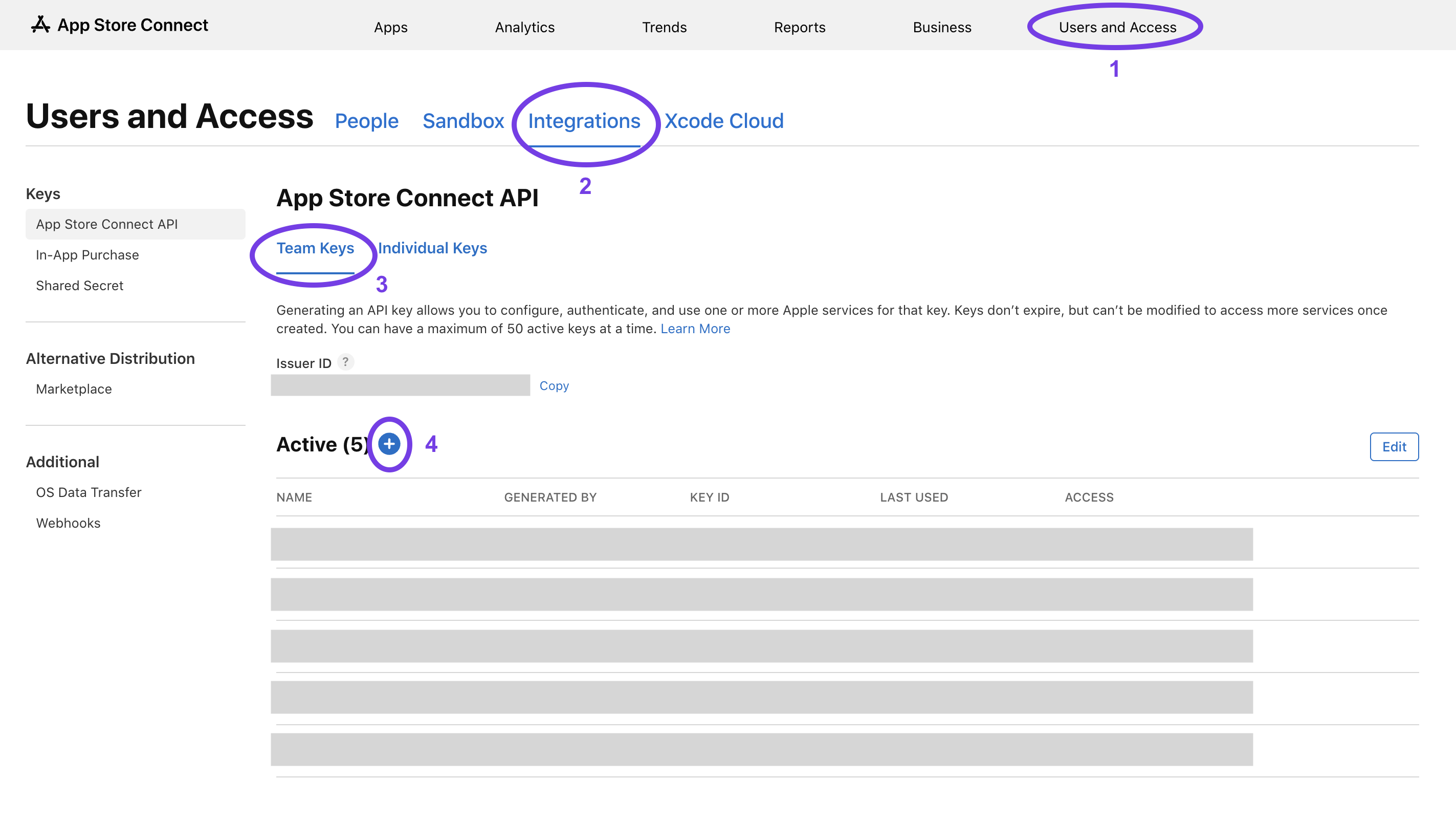
Click Users and Access in the top navigation (1), then select the Integrations tab (2). Choose App Store Connect API from the sidebar, then select the Team Keys tab (3).
3. Generate a new key
Click the + button (4) next to "Active" to generate a new key.
4. Configure the key
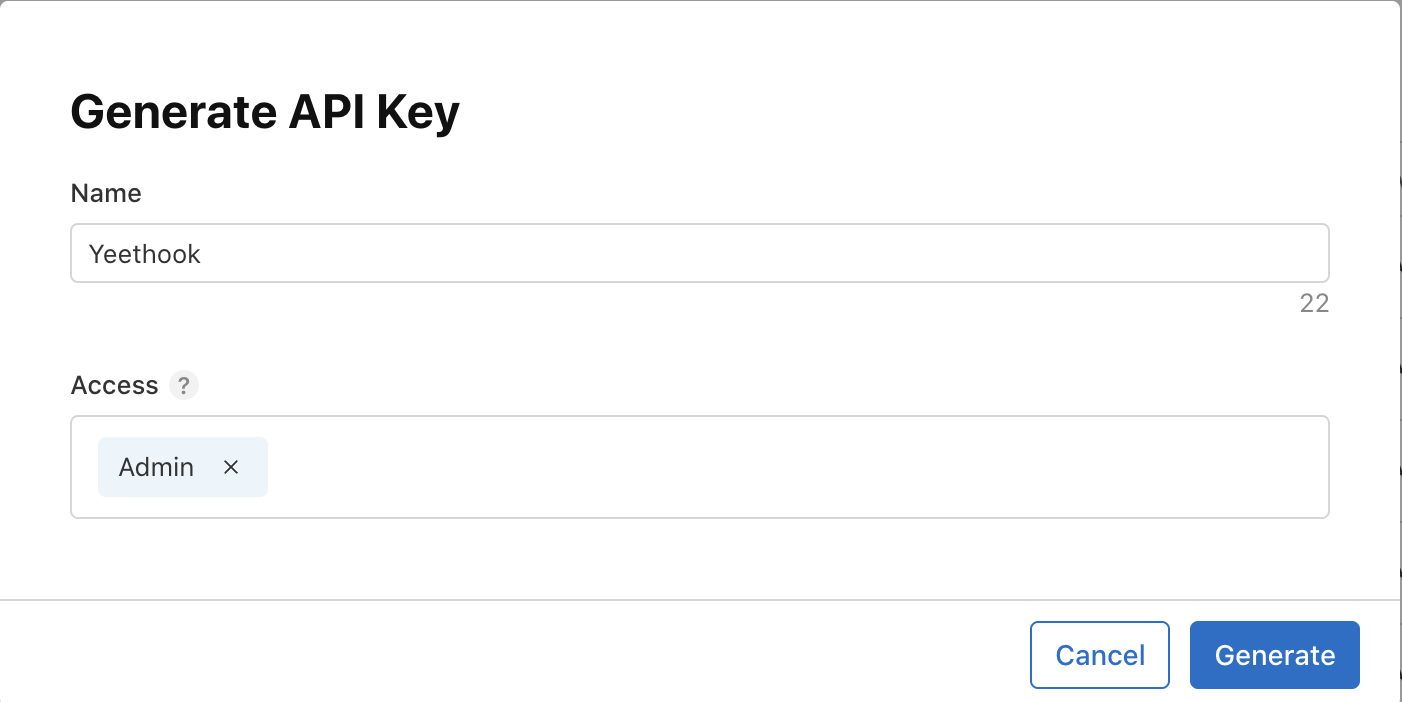
In the "Generate API Key" dialog:
- Name — enter a descriptive name, for example "Yeethook"
- Access — select Admin from the dropdown. This role is required for Yeethook to manage webhooks and fetch app data for event enrichment.
Click Generate to create the key.
5. Download the .p8 file and copy your credentials
After creating the key, you need three things from this page:
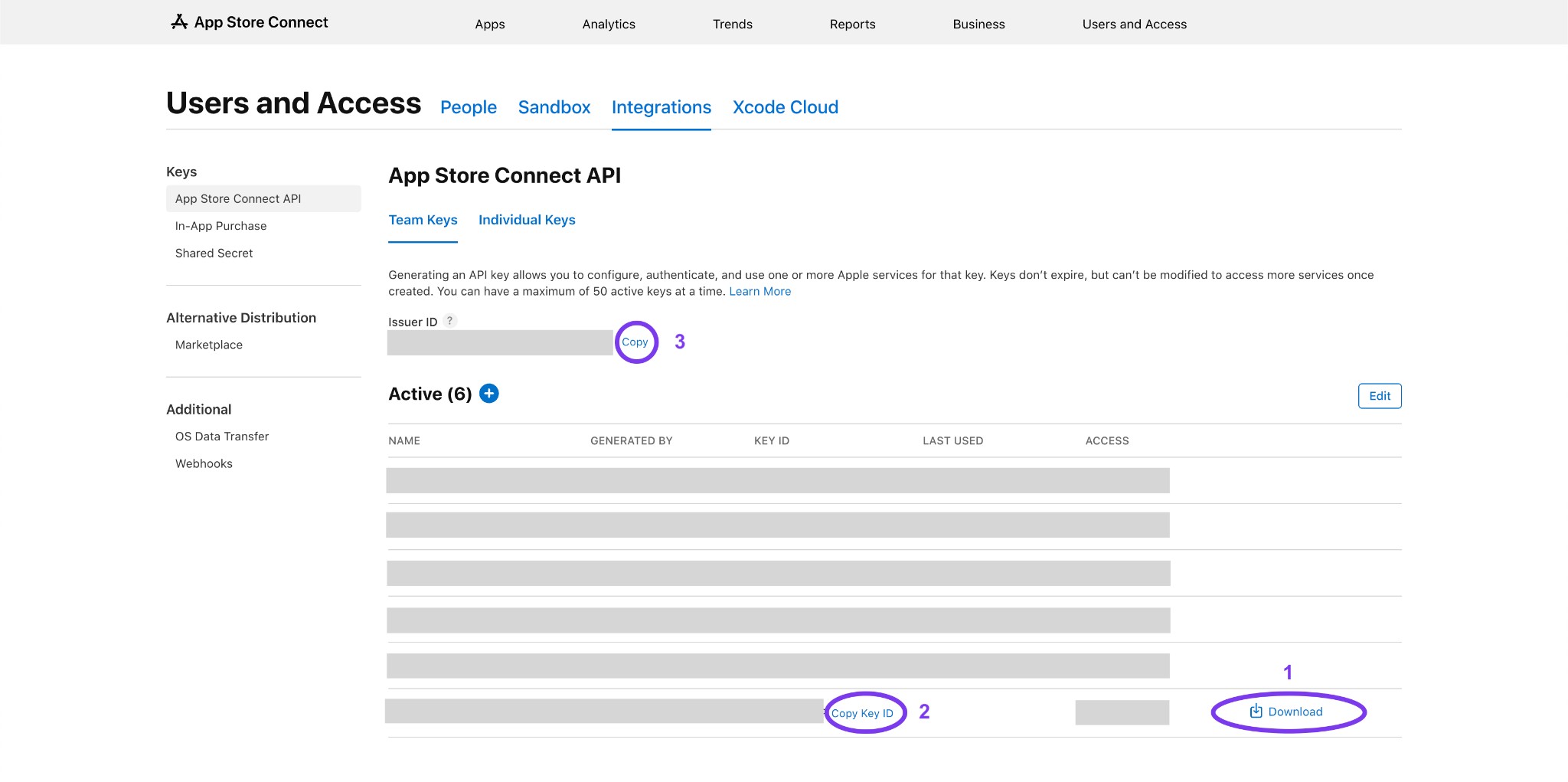
- Download — click the Download button next to your key to download the
.p8file - Copy Key ID — click Copy Key ID to copy the Key ID for your key
- Copy Issuer ID — click Copy next to the Issuer ID at the top of the page
Important: Apple only lets you download the .p8 file once. Save it somewhere secure immediately. If you lose it, you will need to create a new key.
Upload to Yeethook
Back in Yeethook, on the Setup page:
- Enter the Key ID and Issuer ID you copied
- Optionally add a Label (e.g. "Main API Key")
- Drag and drop your .p8 file into the upload zone, or click to browse
- Click Upload Key
Yeethook will validate the key by connecting to Apple's API, import your apps, and you're ready to go.
Troubleshooting
- "Invalid key" error — double-check that the Key ID and Issuer ID match the key you downloaded. They must be from the same key.
- "Insufficient permissions" error — make sure the key has the Admin role. The App Manager role is not sufficient for webhook management.
- Lost .p8 file — you will need to revoke the old key and create a new one. Go to Users and Access → Integrations → App Store Connect API, find the key, and click Revoke.